Setup
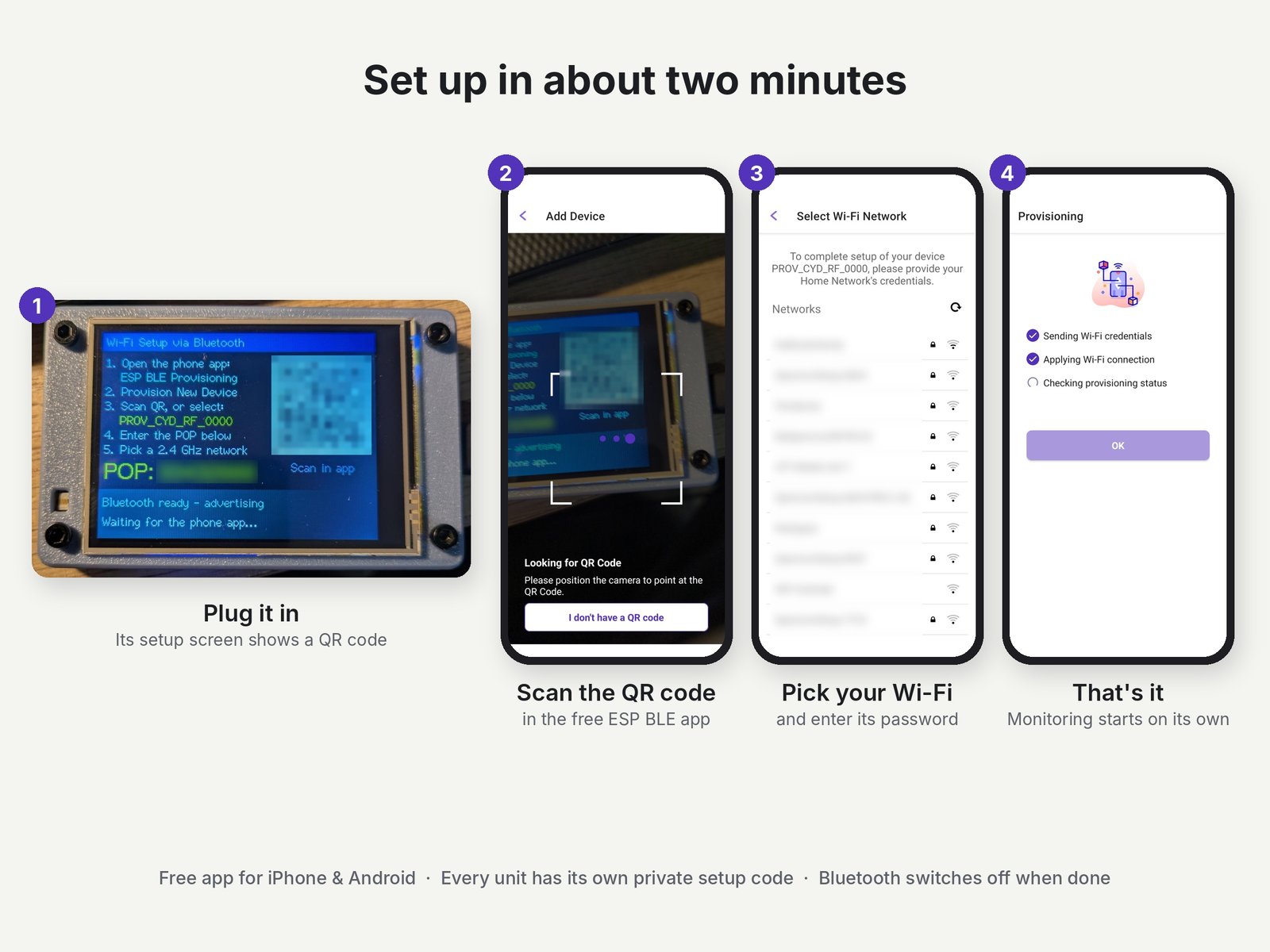
You need the USB cable, your phone, and your Wi-Fi password. You only do this once; the monitor remembers your network.
- 1
Plug it in
Use the included cable and any phone charger or computer. After a short start-up screen, the setup screen shows a device name (like PROV_CYD_RF_3FA2), a QR code, and an 8-digit setup code (POP). Every monitor has its own.
- 2
Install the free app
Get ESP BLE Provisioning by Espressif from the App Store or Google Play. Turn on Bluetooth and allow the app's Bluetooth permission (and Location on Android).
- 3
Scan the QR code
Tap Provision New Device and point the camera at the monitor's screen. No camera handy? Tap I don't have a QR code, pick the device name shown on the monitor, and type the setup code.
- 4
Pick your Wi-Fi
Choose your network and enter its password. Only 2.4 GHz networks appear; if your router uses one name for both bands, it will be listed.
- 5
Wait for "Connected! BLE Disabled"
The monitor shows your network and channel for two seconds, then starts monitoring on its own.
The screen
Everything refreshes once a second. The monitor only listens: it never transmits while measuring, and it doesn't read or store anyone's data.
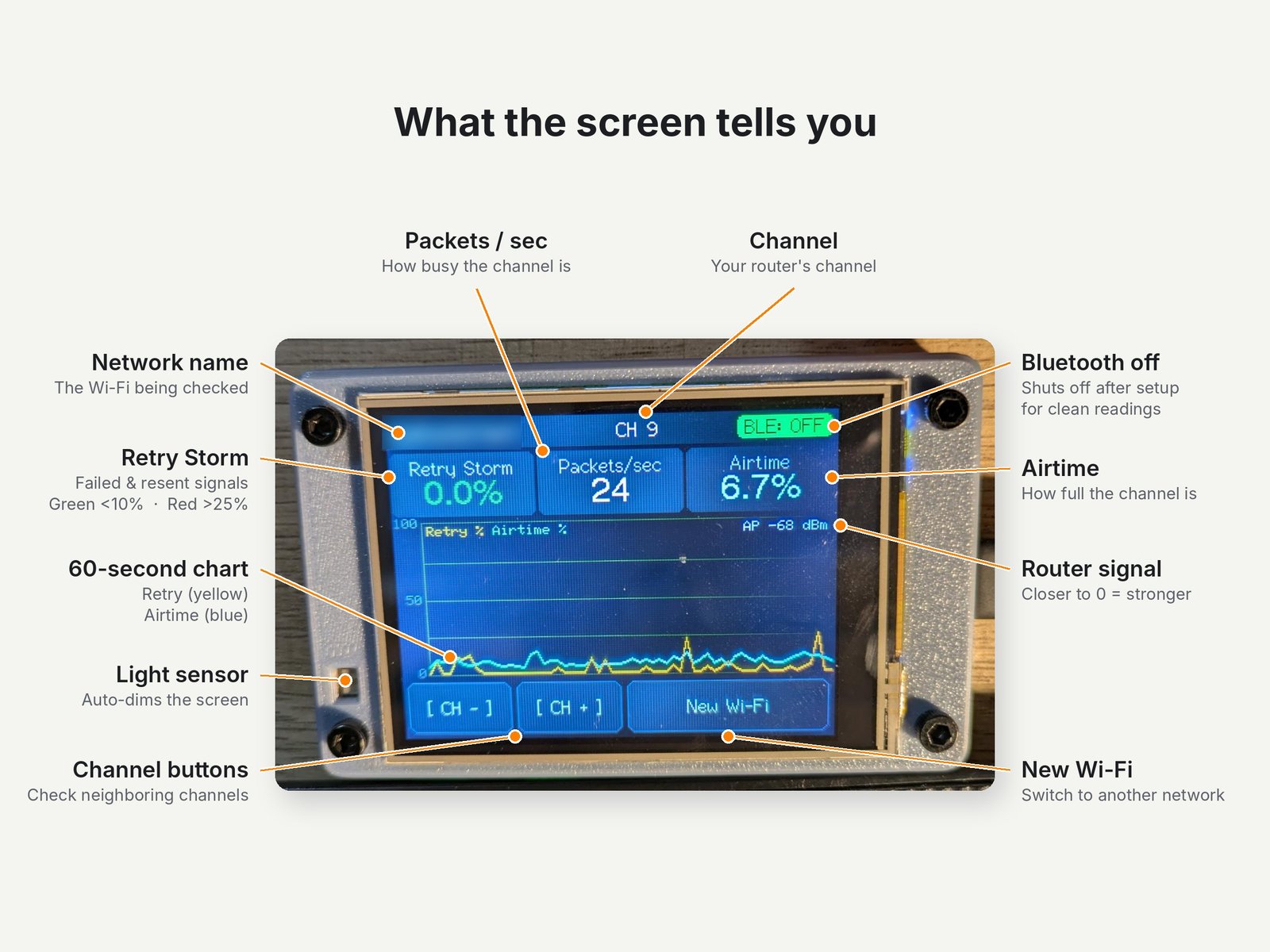
| Reading | What it means |
|---|---|
| Retry Storm | How often transmissions fail and get sent again. This is the health number, and the LED on the back matches its color. |
| Airtime | How much of each second the channel is in use. Slow or distant devices use a lot of airtime per packet. |
| Packets/sec | Every frame heard per second. Context for the other two, not good or bad on its own. |
| AP signal | Your router's signal strength where the monitor sits. Closer to 0 is stronger. "AP not heard" means no router frames that second. |
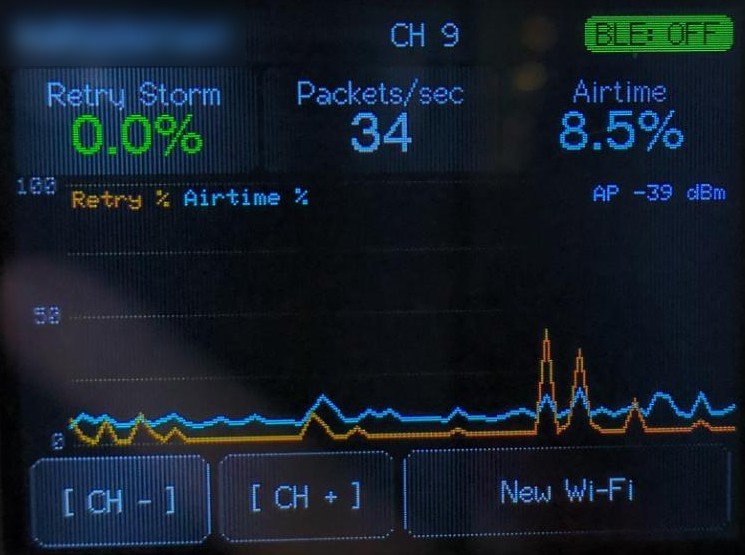
| Chart | The last 60 seconds: retries in yellow, airtime in blue. It tells a brief blip from an ongoing problem. |
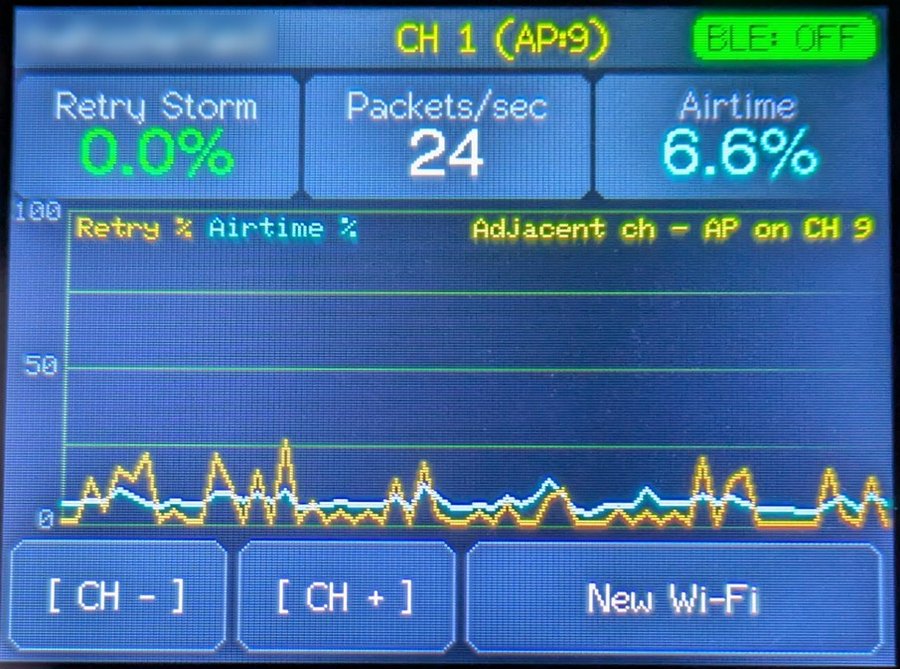
| CH − / CH + | Step through channels 1–11 to check your neighbors. Off your router's channel, the top bar shows "CH 7 (AP:9)" in yellow. |
Good & bad numbers
Judge by what the chart does over a minute, not by one reading. A phone waking up or a big download can spike either line for a second or two.
Retry Storm built into the monitor
Airtime rule of thumb
Over 70% means the channel is saturated.
Router signal rule of thumb
What to try
The two main numbers point to different fixes. Match what you see to a row.
| You see | Likely cause | What to try |
|---|---|---|
| High airtime, low retries | A crowded channel that's still working: your devices or your neighbors'. | Check channels 1, 6 and 11 with CH ±, then move your router to the one with the lowest airtime. |
| Low airtime, high retries | Interference or a weak link, not congestion. | Look for microwaves, baby monitors, wireless cameras or Bluetooth gear near the router, or a device far from it. |
| Both high | A retry storm: resends filling the channel and causing more collisions. | Change channel first, then look for a struggling far-away device or an interference source. |
| Spikes at the same time daily | A scheduled source: a microwave at mealtimes, backups, cloud syncs. | Note the time, then switch suspects off one at a time while watching the chart. |
| Signal below −75 dBm | Too far from the router, or walls in the way. | Move the router, or add a mesh node or access point. |
Pick the best channel
Spend about 30 seconds each on channels 1, 6 and 11 and note the airtime. Lowest wins. Stick to those three because they don't overlap each other.
Find dead spots
Carry the monitor room to room. Where the signal drops below −75 dBm or retries climb, devices will struggle.
Wi-Fi or internet?
When things feel slow, glance at the LED. Green means your Wi-Fi is healthy and the slowdown is likely your provider.
Troubleshooting
"Wrong Wi-Fi password"
"Network not found"
The app can't find the monitor
The router changed or moved
Taps land in the wrong place
The screen is too dim or too bright
Limits
- 2.4 GHz only. It can't see 5 GHz or 6 GHz traffic, so a dual-band router's 5 GHz side is invisible to it.
- Airtime is an estimate from the frames it can decode. Non-Wi-Fi noise, like a microwave, shows up as extra retries rather than airtime.
- It measures where it sits. A device two rooms away may see different conditions.
- One channel at a time. Each channel switch clears the chart.